> For the complete documentation index, see [llms.txt](https://support.barnetpos.com/llms.txt). Markdown versions of documentation pages are available by appending `.md` to page URLs; this page is available as [Markdown](https://support.barnetpos.com/liquor-store-portal/product-maintenance/using-the-product-maintenance-import-tool-in-barnet-portal-part-2-2.md).
# Using the Product Maintenance Import Tool in Barnet Portal Part 2/2
**USING THE PRODUCT MAINTENANCE IMPORT TOOL IN BARNET PORTAL**
**If “Enable Undo” is not available, contact Barnet Support to enable it for your account.**
1. **Post-Import Actions**
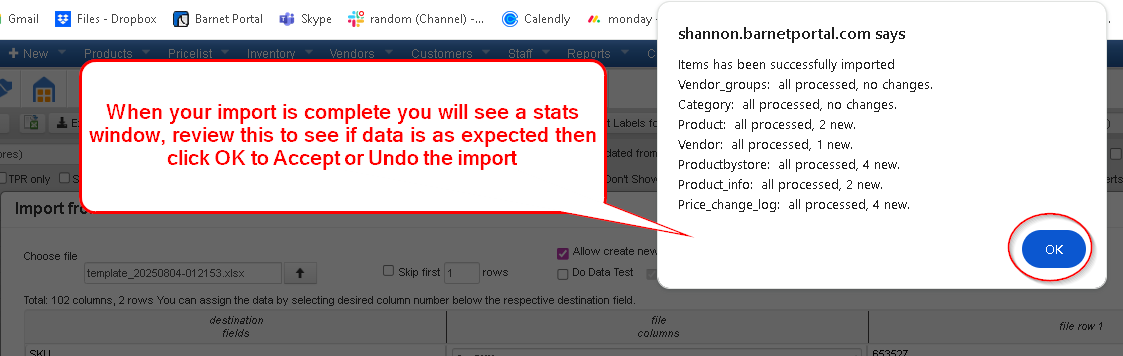
* After import, you'll see a confirmation window.
* Click “OK”.
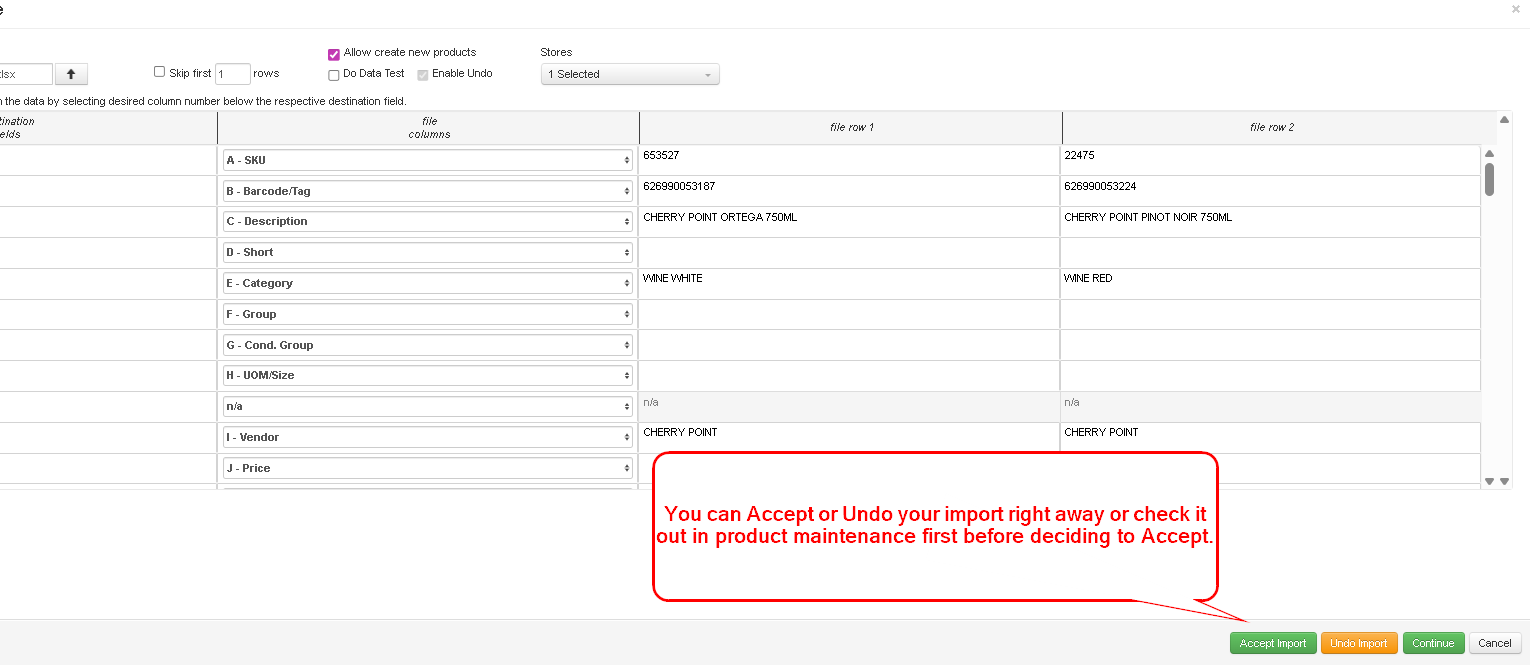
* Then either **Accept** or **Undo** the import immediately or review the products first.
**Pending Import Indicator**
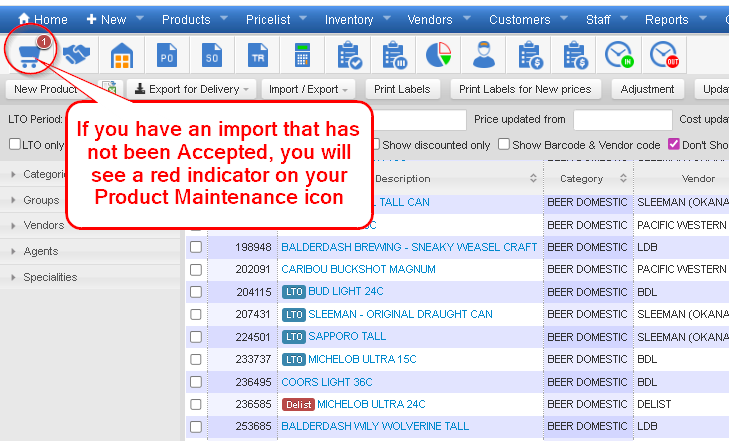
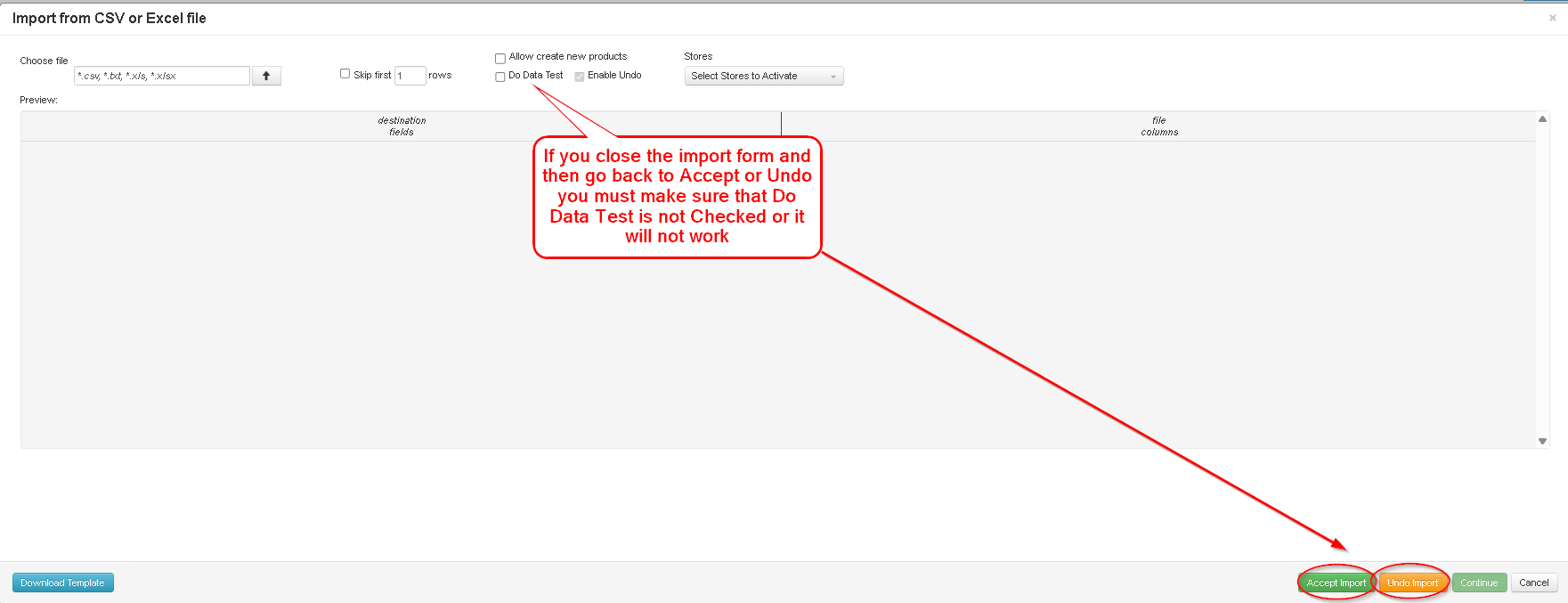
If you close the import window without accepting or undoing:
* You’ll see a **red dot** on the \ icon.
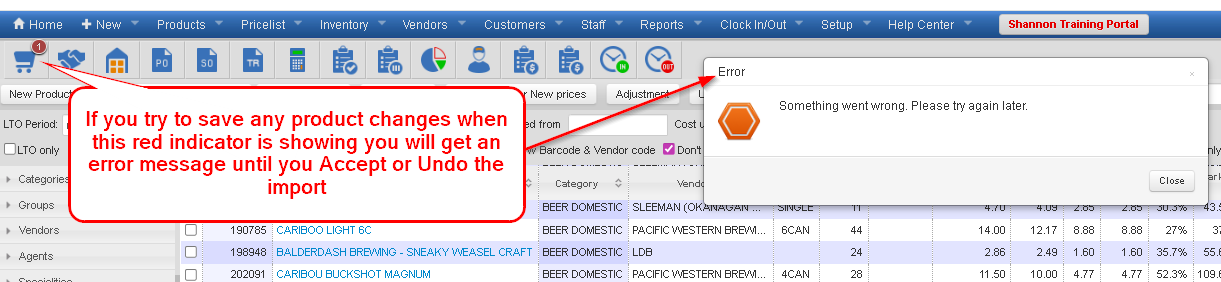
* You **cannot edit** any products until the import is finalized.
* Attempting to do so will trigger a **“Something Went Wrong”** error.
To finalize:
* Reopen the Import Tool
* **Uncheck** “Do Data Test”
* Click **Accept** or **Undo**, then click “OK”
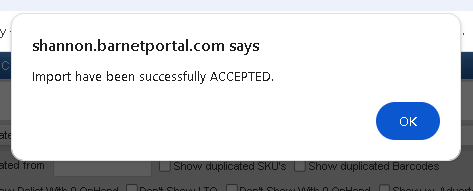
If you click **Accept**, close the confirmation popup by selecting **OK** once the import is successfully accepted.
\
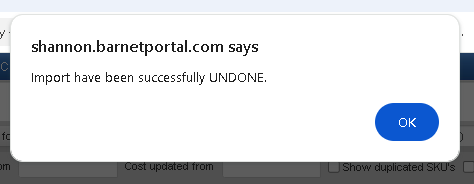
If you click **Undo**, close the confirmation popup by selecting **OK** once the import is successfully undone.
**Tips & Notes**
* You don’t need to fill in every field when creating products—some fields auto-populate.\
*Example: Adding a **Category** also links it to a default Category Group and Cond. Group.*
* When importing new **Categories or Vendors**, follow up in **Category/Vendor Maintenance** to configure settings. Use “Apply All” to apply settings efficiently.
* For stores with **tax-included pricing**, contact Barnet Support **before importing price changes.**
* Attribute values (e.g., Category, Size, Country) must **match your system exactly** or new entries will be created.
* If “Enable Undo” is missing, contact **Barnet Support** to have it enabled for your account.
* Imports need to be Accepted or Undone by the user who was logged in and did the import.
---
# Agent Instructions
This documentation is published with GitBook. GitBook is the documentation platform designed so that both humans and AI agents can read, navigate, and reason over technical content effectively. Learn more at gitbook.com.
## Querying This Documentation
If you need additional information that is not directly available in this page, you can query the documentation dynamically by asking a question.
Perform an HTTP GET request on the current page URL with the `ask` query parameter, and the optional `goal` query parameter:
```
GET https://support.barnetpos.com/liquor-store-portal/product-maintenance/using-the-product-maintenance-import-tool-in-barnet-portal-part-2-2.md?ask=&goal=
```
`ask` is the immediate question: it should be specific, self-contained, and written in natural language.
`goal` is optional and describes the broader end goal you are ultimately trying to accomplish on behalf of the user. GitBook uses it to tailor the answer towards what is most useful for that goal.
The response will contain a direct answer to the question and relevant excerpts and sources from the documentation.
Use this mechanism when the answer is not explicitly present in the current page, you need clarification or additional context, or you want to retrieve related documentation sections.