> For the complete documentation index, see [llms.txt](https://support.barnetpos.com/llms.txt). Markdown versions of documentation pages are available by appending `.md` to page URLs; this page is available as [Markdown](https://support.barnetpos.com/restaurants-and-pubs/pub-pos-inventory.md).
# PUB POS - Inventory
**BARNET PUB – INVENTORY MANAGEMENT**
**Recipe System - Setting Up the Recipe System**
The PUB Inventory system connects what you sell to what you purchase by using recipes, sizes, and portions. This allows the system to automatically calculate costs and deduct inventory correctly.
**1.1 Purchasing Items (Ingredients)**
The system defines **two types of products**:
* **Selling Items**Items sold to customers (e.g., drinks, menu items).
* **Purchasing Items**Items purchased to make Selling Items (e.g., liquor, wine, ingredients).
You can switch between these views in the **Product List** using the tabs:
* **Selling Items**
* **Purchasing Items**

**Tip:** Always confirm you are working in the correct tab before editing products.
**Viewing Purchasing Item Details**
When viewing a **Purchasing Item**, the system will show:
* Product details (size, cost, etc.)
* A list on the **right-hand side** showing **which Selling Items use this ingredient**
This helps verify ingredient usage across multiple menu items.

**1.2 Setting Up Sizes**
Correct size setup is **critical** for accurate inventory tracking.
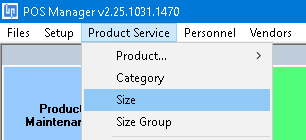
**1.2.1 Open the Size Table**
Navigate to the **Size Table** in PUB Manager.
 **1.2.2 Add or Edit a Size**
* Click **“+”** to add a new size
* Or **double-click** an existing size to edit it

**1.2.3 Portion Size & Portion Rate**
When configuring a size, ensure:
* **Portion Size** is correct
* **Portion Rate** is accurate
**Portion Rate** = how many portions are contained in that size.
The inventory system relies on this information to:
* Link Selling Items to Purchasing Items
* Calculate costs
* Deduct inventory accurately

**1.3 Recipes**
Each **Selling Item** is made up of **portions of Purchasing Items (ingredients)**.
A recipe:
* Lists all ingredients used
* Shows individual ingredient costs
* Displays the **total cost** of the Selling Item

**Example: Peller White (6 oz Glass)**
**Purchasing Item**
* Peller White wine
* Purchased in a **4L box**
**Sizes Set Up**
* 6 oz = 6 ounces
* 4L = 138.65 ounces
These values must already exist in the **Size Table**.


**Adding the Recipe**
1. Open \.
2. Search for the **Selling Item**: *Peller White – 6 oz*
3. Go to the ‘Recipe’ tab
4. Click the **green “+”** icon to add an ingredient


**Selecting the Ingredient**
1. In the **Search** field, find the **Peller White Purchasing Item**
2. Select the item
3. Enter the **portion size**
* In this example: **6 oz**
4. Click “Save”

**Result**
* The recipe is now linked
* Each time a **6 oz glass of Peller White** is sold:
* The system deducts **6 oz**
* From the **4L (138.65 oz)** purchasing inventory
* Inventory levels and costs update automatically
**Key Takeaways & Best Practices**
* Always verify **Selling vs Purchasing** item selection
* Ensure **Size and Portion Rates** are accurate before adding recipes
* Recipes drive:
* Inventory deductions
* Cost calculations
* Reporting accuracy
* Incorrect size setup will cause **inventory discrepancies**
---
# Agent Instructions
This documentation is published with GitBook. GitBook is the documentation platform designed so that both humans and AI agents can read, navigate, and reason over technical content effectively. Learn more at gitbook.com.
## Querying This Documentation
If you need additional information that is not directly available in this page, you can query the documentation dynamically by asking a question.
Perform an HTTP GET request on the current page URL with the `ask` query parameter, and the optional `goal` query parameter:
```
GET https://support.barnetpos.com/restaurants-and-pubs/pub-pos-inventory.md?ask=&goal=
```
`ask` is the immediate question: it should be specific, self-contained, and written in natural language.
`goal` is optional and describes the broader end goal you are ultimately trying to accomplish on behalf of the user. GitBook uses it to tailor the answer towards what is most useful for that goal.
The response will contain a direct answer to the question and relevant excerpts and sources from the documentation.
Use this mechanism when the answer is not explicitly present in the current page, you need clarification or additional context, or you want to retrieve related documentation sections.
**1.2.2 Add or Edit a Size**
* Click **“+”** to add a new size
* Or **double-click** an existing size to edit it

**1.2.3 Portion Size & Portion Rate**
When configuring a size, ensure:
* **Portion Size** is correct
* **Portion Rate** is accurate
**Portion Rate** = how many portions are contained in that size.
The inventory system relies on this information to:
* Link Selling Items to Purchasing Items
* Calculate costs
* Deduct inventory accurately

**1.3 Recipes**
Each **Selling Item** is made up of **portions of Purchasing Items (ingredients)**.
A recipe:
* Lists all ingredients used
* Shows individual ingredient costs
* Displays the **total cost** of the Selling Item

**Example: Peller White (6 oz Glass)**
**Purchasing Item**
* Peller White wine
* Purchased in a **4L box**
**Sizes Set Up**
* 6 oz = 6 ounces
* 4L = 138.65 ounces
These values must already exist in the **Size Table**.


**Adding the Recipe**
1. Open \.
2. Search for the **Selling Item**: *Peller White – 6 oz*
3. Go to the ‘Recipe’ tab
4. Click the **green “+”** icon to add an ingredient


**Selecting the Ingredient**
1. In the **Search** field, find the **Peller White Purchasing Item**
2. Select the item
3. Enter the **portion size**
* In this example: **6 oz**
4. Click “Save”

**Result**
* The recipe is now linked
* Each time a **6 oz glass of Peller White** is sold:
* The system deducts **6 oz**
* From the **4L (138.65 oz)** purchasing inventory
* Inventory levels and costs update automatically
**Key Takeaways & Best Practices**
* Always verify **Selling vs Purchasing** item selection
* Ensure **Size and Portion Rates** are accurate before adding recipes
* Recipes drive:
* Inventory deductions
* Cost calculations
* Reporting accuracy
* Incorrect size setup will cause **inventory discrepancies**
---
# Agent Instructions
This documentation is published with GitBook. GitBook is the documentation platform designed so that both humans and AI agents can read, navigate, and reason over technical content effectively. Learn more at gitbook.com.
## Querying This Documentation
If you need additional information that is not directly available in this page, you can query the documentation dynamically by asking a question.
Perform an HTTP GET request on the current page URL with the `ask` query parameter, and the optional `goal` query parameter:
```
GET https://support.barnetpos.com/restaurants-and-pubs/pub-pos-inventory.md?ask=&goal=
```
`ask` is the immediate question: it should be specific, self-contained, and written in natural language.
`goal` is optional and describes the broader end goal you are ultimately trying to accomplish on behalf of the user. GitBook uses it to tailor the answer towards what is most useful for that goal.
The response will contain a direct answer to the question and relevant excerpts and sources from the documentation.
Use this mechanism when the answer is not explicitly present in the current page, you need clarification or additional context, or you want to retrieve related documentation sections.